Niri - The best window manager
Niri is a window manager for Linux, written in Rust. It is a tiling window manager, which means it arranges windows in a tiling pattern, making it easy to use and efficient. It stands out from other tiling window managers because it has a trick up its sleeve: it is a tiling window manager with an infinite horizontal scrollable workspace.
First, Hyprland
Hyprland changed my life, going back to Windows (or just any floating WM in linux) is just pain. No window snapping, no workspaces, no keyboard shortcuts (at least not that easy), …
The improved work efficiency is insane and organized. I had a strict ideology in Hyprland: 10 workspaces per monitor. But having Teams, Outlook, Discord, Whatsapp and Spotify open at the same time already consumes 5 workspaces. Unless you are combining 2 apps per workspace, you would still need 3 workspaces for just these apps.
This is where Niri comes in. I now have all my social apps open on one workspace, and I can switch between them with a simple keyboard shortcut. Also moving them around between monitors is just so much easier.
The infinite horizontal scrollable workspace
You probably think: “We already have workspaces, why do we need infinite horizontal scrollable workspaces?” and “Wouldn’t this make it more difficult to navigate?”
TLDR: Yes and Yes
Infinite horizontal scrollable workspaces indeed makes it more difficult, but also more organized. One of the biggest benefits is that when you open a new app, your original app doesn’t resize, it just stays there but your viewport changes.
I can now finally combine apps on one workspace without them being squished together.
Awesome features I didn’t know I needed
Niri has some awesome built in features which I didn’t know I needed. These come preinstalled and work out of the box. Something Hyprland didn’t offer.
Screenshot tool
Niri comes preloaded with a screenshot tool. TBH Hyprshot didn’t work all of the time, it worked 99% of the time, but sometimes… Also It didn’t come preinstalled and as far as I know, it isn’t even maintained anymore.
But the Niri screenshot tool, let me tell you, it is amazing. Ever used the Windows snipping tool? You drag and the moment you let go it registers the screenshot. Sometimes you think: “Oh convenient” but sometimes you think: “Shit I selected the wrong area”. The Niri screenshot tool lets you select an area and when you are satisfied, you press Space to register the screenshot. You can also hide or show the cursor (hidden by default), for when you want to point at something? But the best part is, it remembers your last used area and you can just press Space to take another screenshot of the same area. This is just golden, whenever you are making images for an app/website, you always have the same area on screen.
Overview
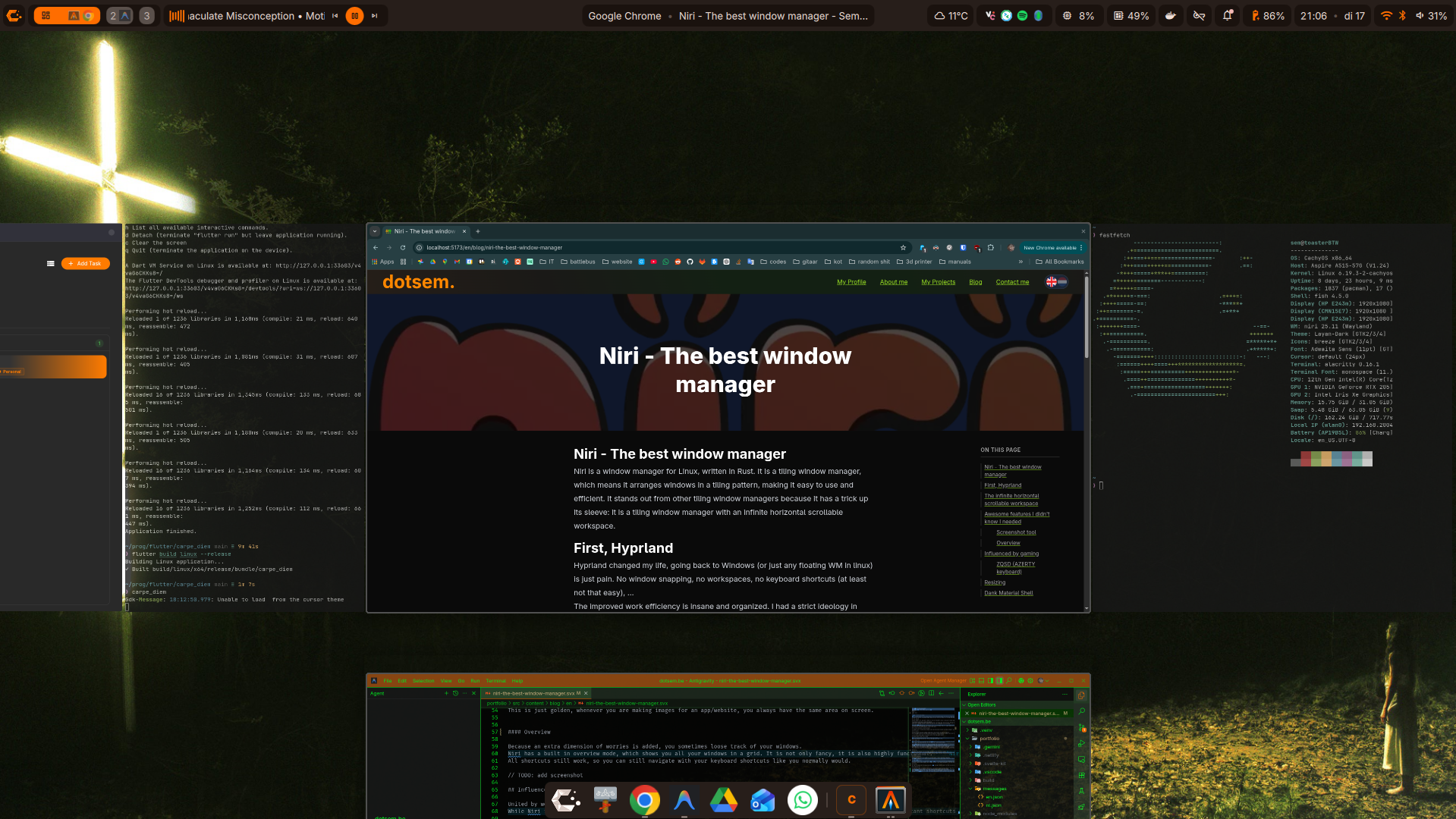
Because an extra dimension of worries is added, you sometimes loose track of your windows. Niri has a built in overview mode, which shows you all your windows in a grid. It is not only fancy, it is also highly functional. All shortcuts still work, so you can still navigate with your keyboard shortcuts like you normally would.
Influenced by gaming
United by workflow, we are still divided by our shortcut choices. I took my inspiration from gaming. While Niri is supposed to lessen the use of a mouse, you still need one for most programs, that is why i want my most important shortcuts to be on the left side of my keyboard.
ZQSD (AZERTY keyboard)
Your typical movement keys in any game would be ZQSD (or WASD for the normal people out there). And because of the way Niri works (horizontal = switch between windows on your workspace, vertical = switch between workspaces), it is really intuitive to use Q/D to switch between windows on your workspace and Z/S to switch between workspaces.
Resizing
Don’t get the illusion that everything works great on Niri. Resizing is sometimes harder than what I was used to in Hyprland. This is mostly because windows can take up the full screen if they want to.
Dank Material Shell
I’ve learned my lesson from Hyprland, a custom shell is cool, but it consumes an enormous amount of time. This time I went for a pre-build shell: Dark Material Shell. It comes with all features necessary, and a great community extends it even further with plugins. It uses Quickshell, which uses QML. I’m not a big fan of QML, in my opinion the tooling isn’t great, but it works. DMS is very well documented, so it is easy to get started with. The setting menu is also great with lots of options. Why didn’t i try Noctalia Shell? Well idk, I just choose DMS, there is no clear reason why I chose one above another.
Should you switch to Niri?
If you are currently DE hopping, you could give Niri a try. If you are currently on Gnome, you can install the PaperWM extension to get a similar experience while keeping Gnome. BTW nobody is stopping from installing 2 or more window managers on your system. You can just switch between them from your login screen.